This section illustrates adding new process setup options to a process. The examples in this section use the custom process AbrasiveJet Cut (see Adding a New Process to a Process Group). The first two examples mimic setup options for the process Watercut Jet. The last example illustrates further customization. The section contains the following subsections:
For more information on process setup options, see Working with Process Setup Options in Working with Cost Model Data and Metadata.
Adding a Setup Option: using CSL, Formula, and User Modes
This section contains an example of adding a setup option to a process. Following Waterjet Cut, this new process will include a setup option, bundleCount, for the number of blanks that are stacked and processed simultaneously.
Follow these steps to create the setup option:
-
In the navigation pane, double-click AbrasiveJet Cut; in the editing pane, click the Process Setup Optoins tab.
In this example, the process is new, and so is editable without an explicit override. For inherited objects, you must select Override Object from the Edit menu, or click the override icon,
 , in the toolbar.

-
Scroll to the bottom of the editing pane, and click
 . Text boxes and a table for a new setup option appear.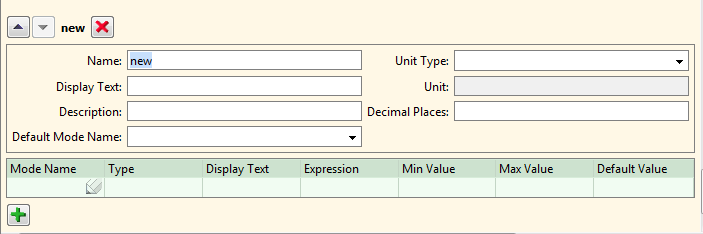
Each line of the table will define an end-user input mode. You will define three modes:
-
Default mode: uses the default bundle count 1. This value is specified by a simple CSL expression, consisting of just a numerical literal. (See Adding a Setup Option: Padding Cycle Time for another example of using CSL mode in a process setup option.)
-
Computed mode: uses a computed bundle count. This value is specified by the CSL formula (defined in the process taxonomy module or a supporting library module)
bundleAbrasiveJetCountComputed. (SeebundleWaterjetCountComputedin the library modulelibWaterjetUtilities.csl.) -
User override mode: This value is entered by the end user.
-
-
Add a line to the table, specifying the following column values:
-
Mode Name:
aDefaultValue -
Type:
CSL -
Display Text:
Default Value -
Expression:
1
-
-
Add a second line to the table, specifying the following column values:
-
Mode Name:
aaComputedValue -
Type:
Formula -
Display Text:
Computed Value -
Expression:
bundleAbrasiveJetCountComputed
-
-
Add a third line to the table, specifying the following column values:
-
Mode Name:
aaaUserOverride -
Type:
User -
Display Text:
User Override -
Min Value:
1 -
Max Value:
bundleAbrasiveJetCountComputed
-
-
Enter the following information into the text boxes:
-
Name:
bundleCount -
Display Text:
Number of Parts in Stack -
Description: Parts can be stacked to cut multiples at once. Maximum number of parts is determined by part thickness and the maximum effective stack thickness without sacrificing part quality.
-
Default Mode Name:
aDefaultValue -
Decimal Places:
1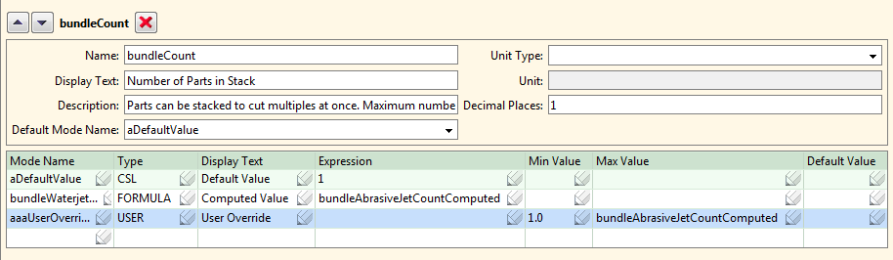
-
- Select Save from the File menu, or click
 in the toolbar, to save your changes.
 -
To incorporate your changes into the cost model, select Publish Cost Model and Digital Factory from the File menu, or click
 in the toolbar.



For more information on CSL, see CSL Language Overview in the chapter Working with Cost Model Logic.